


















CM8 Download – Mobile App Access & Installation Steps
This page explains how to download and install CM8 game apps on your Android or iPhone, and how to play from a mobile browser if you prefer not to install anything. You will find the available game apps, step-by-step installation guides, troubleshooting tips and answers to common questions.
Always download from the buttons and QR codes shown on this page or on the official CM8 website. App availability and installation steps may differ by device, operating system and game. You must meet the age and legal requirements in your location before you play.
CM8 Game Apps Available for Download
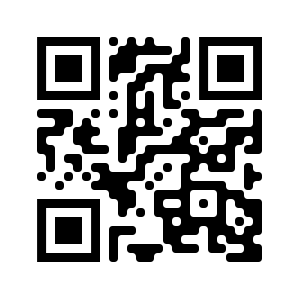
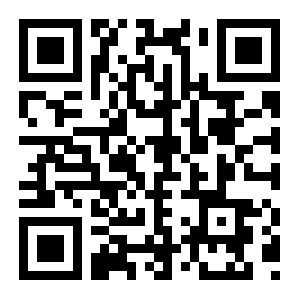
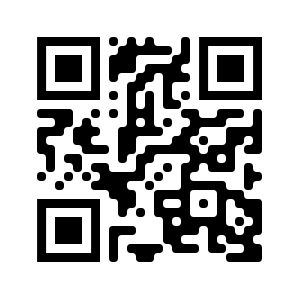
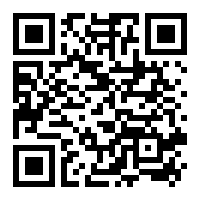
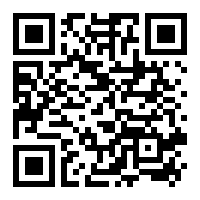
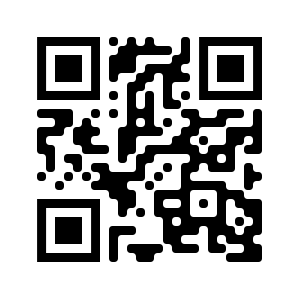
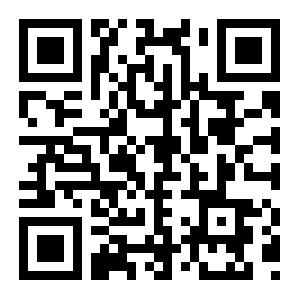
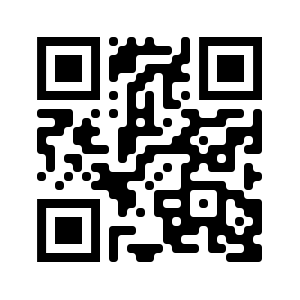
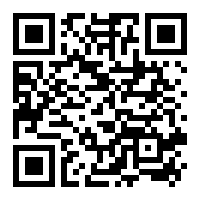
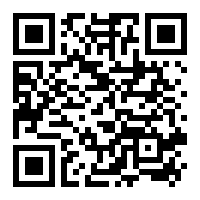
CM8 lists separate game apps for slots and live casino. Choose your device (Android or iOS), then scan the QR code or tap Download on the game card you want.
Slot Apps
The slot section lists apps such as Mega888, Pussy888, 918Kiss and Playtech. Each slot app has its own download button and QR code. Games and features differ by app, so read the app information before you install.
Live Casino Apps
The live casino section lists apps such as Playtech, GamePlay Interactive and Dream Gaming. Open the card of the app you want, then scan its QR code or tap Download.
The list of apps can change. Check the cards on the Download section for the apps currently available on your device.
How to Download and Install CM8 on Android
Android apps are installed from a downloaded file, so your phone may ask for permission first.
- Choose the Android Games tab.
- Find the game you want and tap Download, or scan its QR code with your camera.
- When the file has downloaded, tap it to start the installation.
- If your phone asks to allow installs from this source, allow it for this installation only. You can switch the permission off afterwards.
- Open the app and log in with your CM8 account, or register if you are new.
How to Download and Install CM8 on iPhone (iOS)
For iPhone, choose the iOS tab and follow the steps shown on the game card.
- Choose the iOS Games tab.
- Find the game you want and tap Download, or scan its QR code with your iPhone camera.
- Follow the on-screen instructions to finish the installation.
- Open the app from your home screen.
- Log in with your CM8 account, or register first if you are new.
If your iPhone asks for permission during installation, approve it only for this app.
Before You Download: Quick Checklist
- Storage: make sure your phone has enough free space.
- Connection: use a stable Wi-Fi or mobile data connection so the file downloads fully.
- Operating system: keep your Android or iOS version up to date.
- Source: use only the buttons and QR codes on this page.
- Age and law: confirm you meet the legal age and local requirements.
Play Without Downloading: Mobile Browser
You do not have to install an app. You can open CM8 in a mobile browser on Android or iOS, log in and browse the games from there. Display and controls may vary by game, device and browser.
CM8 Login After Installation
Existing members can use the CM8 Login page or the login screen inside the app. Enter your details only on the official CM8 login screen. New users can read the CM8 Register guide to learn about account creation, eligibility and verification.
Check the CM8 promotions page for current offers and their terms before you join.
Troubleshooting: If the App Does Not Install or Open
- The download does not start: check your internet connection and try the button again, or scan the QR code instead.
- The file will not install (Android): check that you allowed installation from this source and that you have enough storage.
- The app will not open: restart your phone, update your operating system and try again.
- You cannot log in: check your username and password, or use the password reset steps in our FAQ.
- Still stuck: contact support through the channels listed on the site.
CM8 Download Safety and Account Security
- Use only the official download buttons and QR codes. Do not install files sent by strangers or from unknown links.
- Avoid modified or unofficial app files.
- Check the permissions an app asks for before you install it.
- Keep your username, password and OTP private. Support will never ask for your password.
- Log out on shared devices.
CM8 Download FAQ
Is CM8 available for Android devices?
Yes. Open the Android Games tab, choose a game and tap Download or scan its QR code. Availability and requirements can differ by game and device.
Can I download CM8 on an iPhone?
Yes. Open the iOS Games tab, choose a game and follow the on-screen steps. Use only the download options shown on this page.
Do I need a separate account for each game app?
You log in to the game apps with your CM8 account details. If a game works differently, this is shown on its card.
Can I play CM8 without downloading an app?
Yes. You can open CM8 in a mobile browser on Android or iOS and log in from there.
Which devices are supported?
Android and iOS phones. Availability and compatibility may differ by game, so check the game card before you install.
How do I log in after downloading CM8?
Open the app or the website and enter your CM8 username and password on the official login screen.
What should I do if I forgot my password?
On the login screen, tap the Forgot Password option if it is shown, enter your username or registered mobile number, confirm the OTP sent to you and set a new password. If you do not receive the code, contact support through the live chat on the site. Never share your password or OTP with anyone.